
Circle it, note it, send it back.
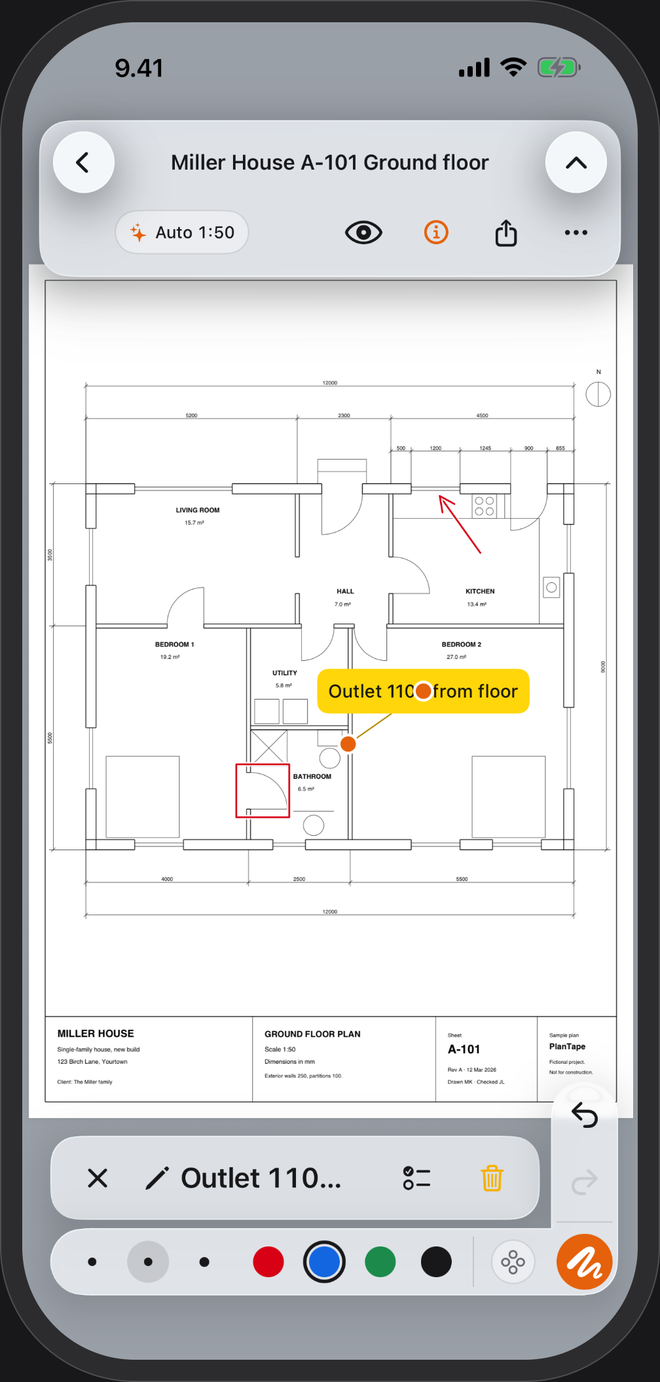
Arrows, boxes and sticky notes on the PDF plan, next to the measurements, placed on the drawing's own lines. Then one PDF back to the architect, the builder or the office.
No account · No cloud · Works offline · iPhone, iOS 26+
From question to reply
- Open the planStraight from Mail, Files or any app that shares a PDF.
- Mark itTap Comment and pick an arrow, a box, a circle, freehand or a sticky note. Red, blue, green or black, in three widths.
- Send it backShare a PDF or an image by message or email. It opens in any PDF viewer.
Marks that point at the right place
Lands on the line
An arrow's tip, a note's pointer and a box's first corner land on the same corners and line ends the tape does; switch that off in the markup toolbar. Freehand draws where your finger goes.
Next to the numbers
Measurements and marks sit on the same plan, so the question and the dimension go out in one file.
Change your mind
Undo and redo, change a mark's colour or width, edit a note's text, drag its handles, or delete it.
A clean PDF out
Choose what goes in: measurements, marks, a date stamp. The shared PDF keeps the original sheet size, and where the page allows, the drawing's lines stay sharp at any zoom.
Questions
Does the person I send it to need PlanTape?
No. It's a PDF; any viewer opens it. If they do have PlanTape, the scale comes along and they can measure more straight away.
Is there a text tool?
Text goes on a sticky note, with a pointer to the spot it's about. Move the note and its pointer separately.
Can I send a whole drawing set?
From the plan you share the page you're on. To send several, tap Select in the project, pick the sheets and share them together, one PDF per sheet.
Are my plans uploaded anywhere?
No. Plans and marks stay on your phone until you share them yourself. The app sends pseudonymous usage counts to help improve it; switch them off in Settings → About → Privacy.